NASTF requires all credentialed users to utilize multi-factor authentication (MFA) to access the SDRM system. MFA enhances account security by requiring a mobile device verification in addition to login credentials.
Users must install the official NASTF authentication application and complete device registration before accessing SDRM. To maintain NASTF policy, users are required to use a smartphone capable of installing the MFA application and must not share authentication credentials or codes.
Prerequisites
Before installing and registering the NASTF app, please ensure you have access to:
- Your active NASTF account (VSP or DP)
- The email associated with your NASTF account
- An Apple or Android smartphone with internet access
- Ability to download apps from the App Store or Google Play
Step 1: Install the NASTF Authentication App
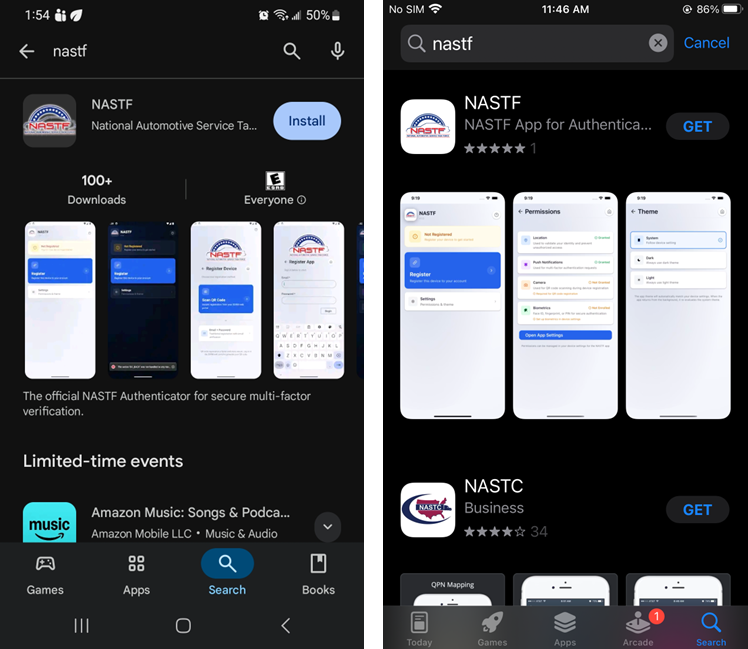
1. Open the App Store (iOS) or Google Play Store (Android). 2. Search for “NASTF”. iOS - App Store Google Play - Play Store 3. Select the official NASTF application. 4. Tap Install and wait for the download to complete. |
|
Step 2: Open the App and Allow Permissions
1. Launch the NASTF app on your device. 2. When prompted, allow required permissions: o Notifications (recommended) o Location services (required for security compliance) note: NASTF uses location data during login to protect against unauthorized access. Location Verification (Required) Ensure Location Services remain enabled for the NASTF app after installation. Set location access to: While Using the App or Always Allow (recommended) Login requests may be denied if location cannot be verified.
Important: Use of VPNs or location-masking services may cause authentication failures. Location data is used strictly for security validation during login. | 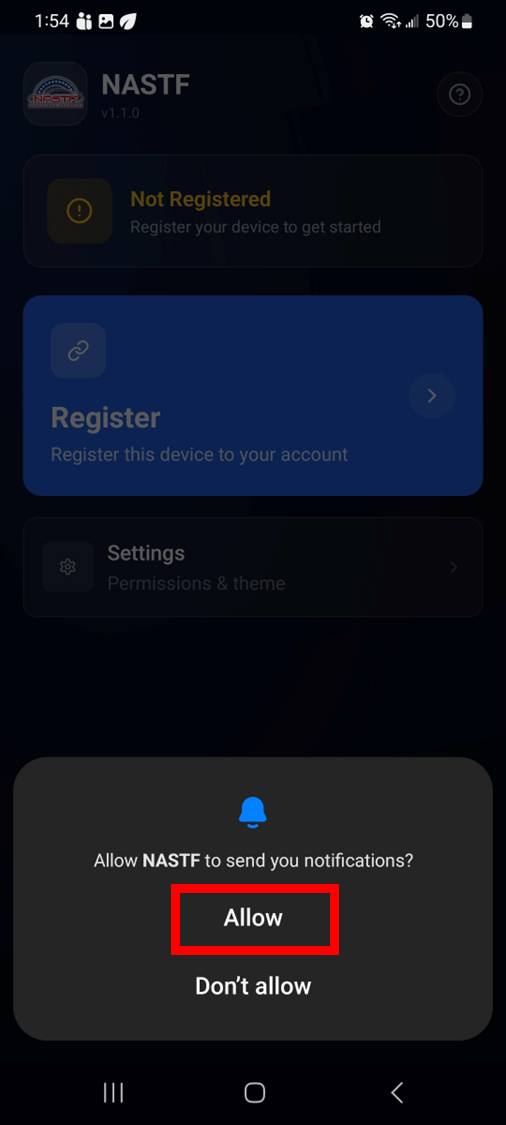 |
Step 3: Register Your Device
1. On the app home screen, select “Register”. | 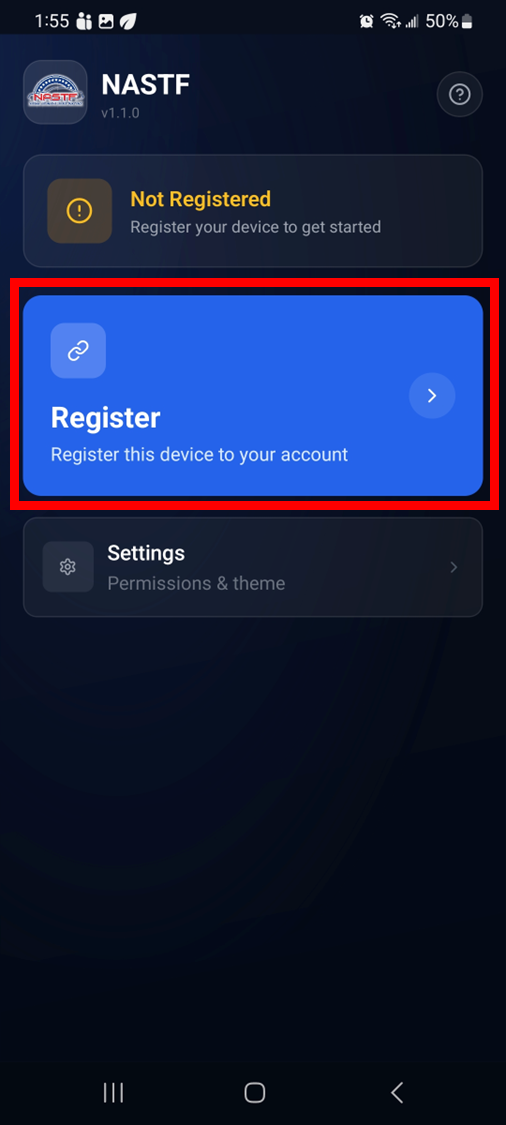 |
3. Enter: o Your NASTF account email o Your NASTF password 4. Select Begin to submit the registration request. | 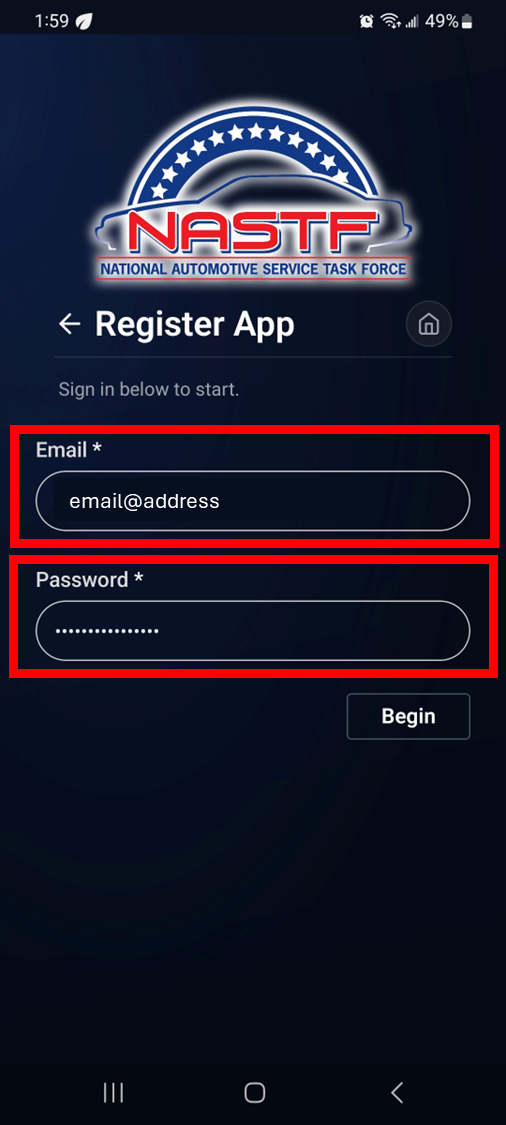 |
Step 4: Verify Registration Code
| 1. Check your email for a registration code. | 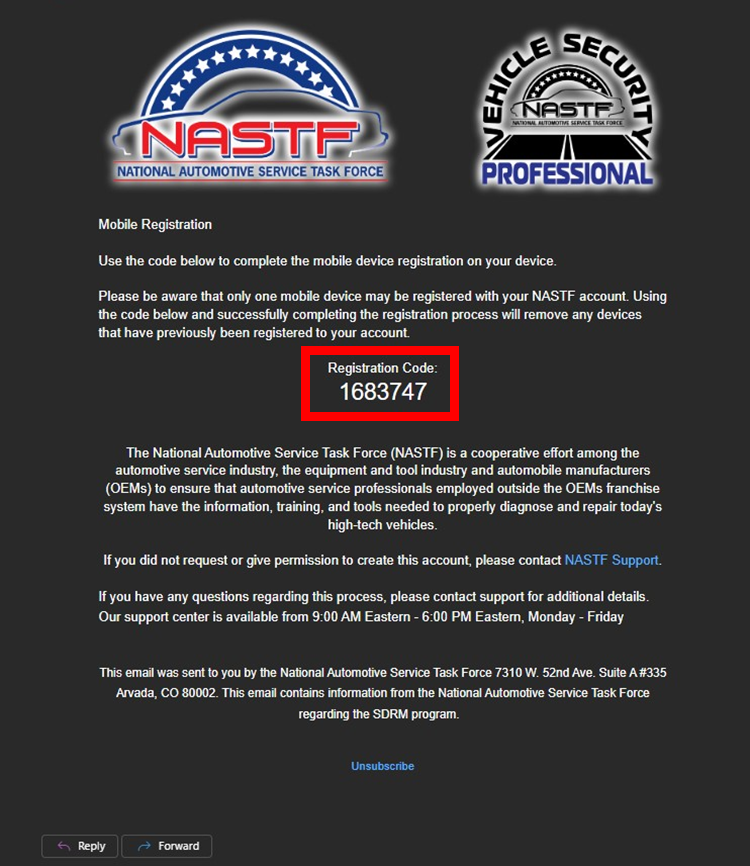 |
2. Return to the NASTF app. 3. Enter the registration code in the provided field. | 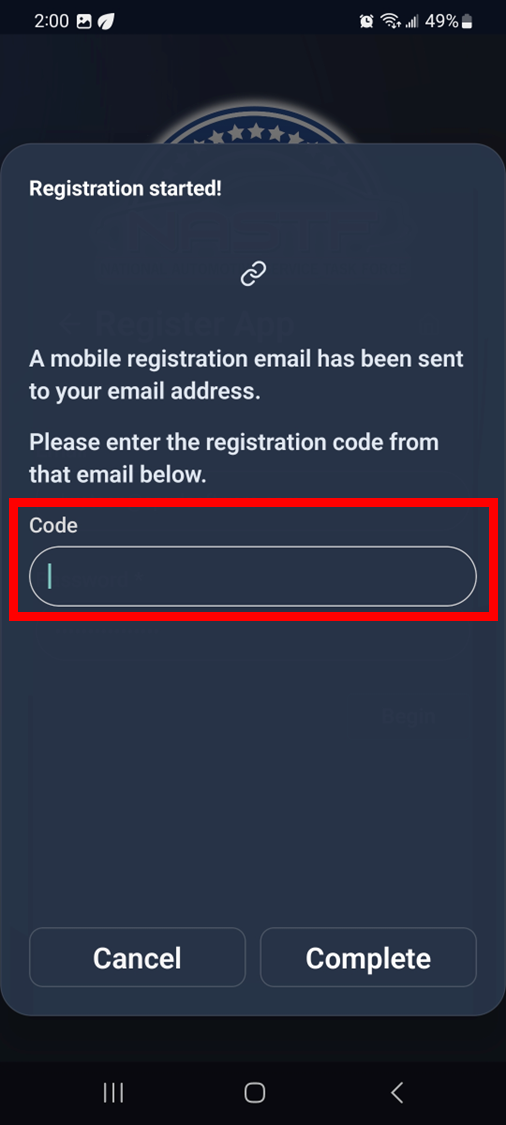 |
4. Select Complete. | 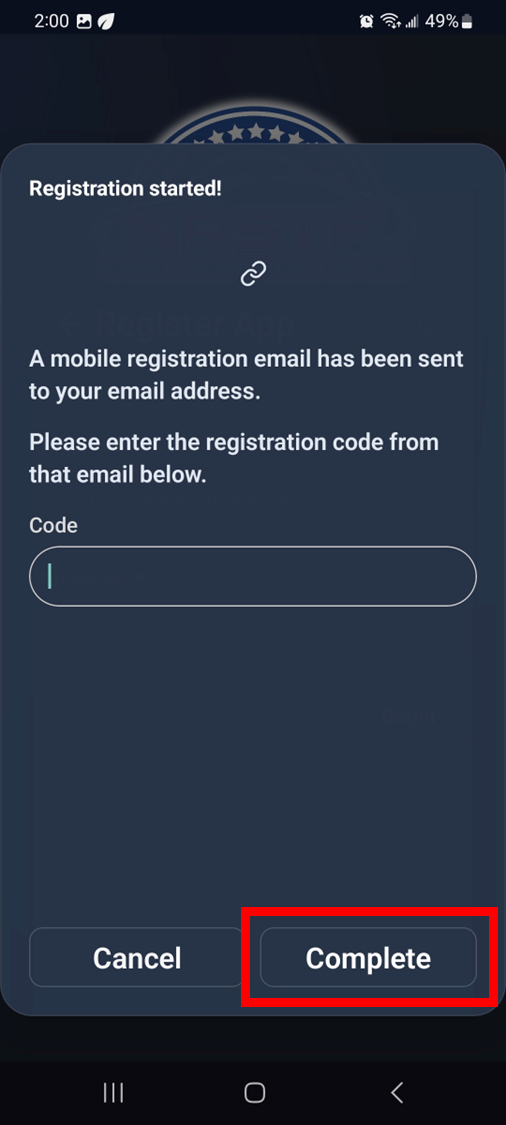 |
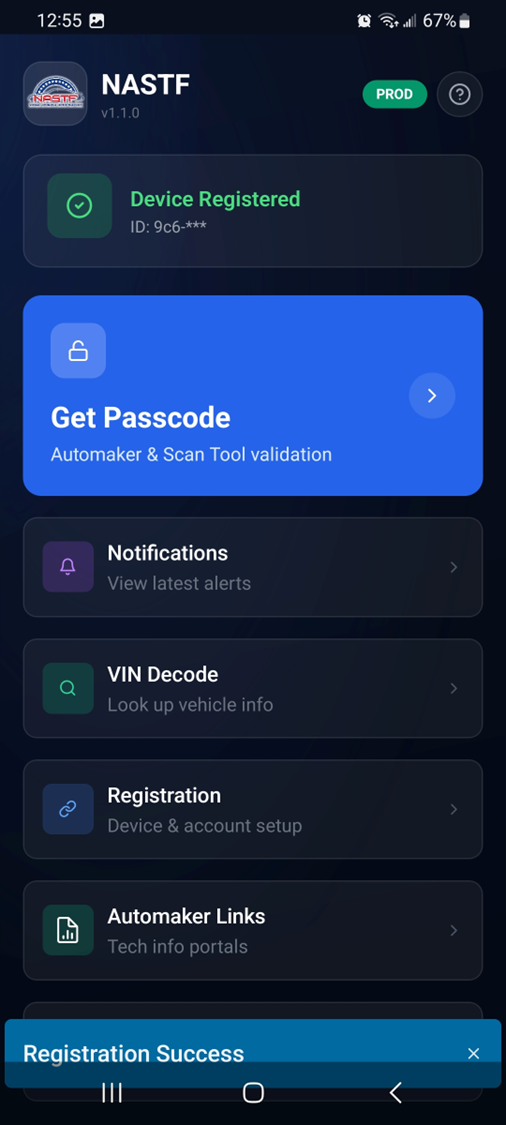
Step 5: Device Registered
Registration is complete once confirmation is displayed on the app. Only one mobile device may be registered per account at a time. |
|
Step 6: Complete Login with MFA
1. Go to the SDRM login page. 2. Enter your email and password. | 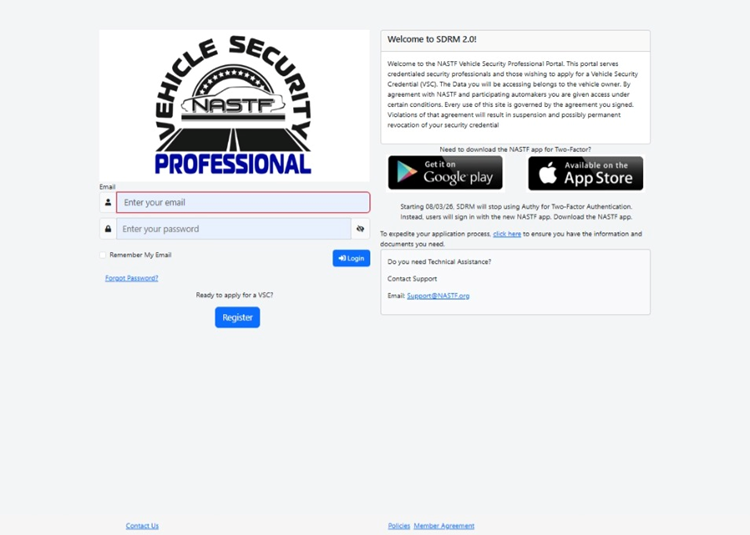 |
3. A login request will be sent to your NASTF app. 4. On your mobile device: o Review the login request details o Tap Approve to continue Biometric Authentication (recommended) If supported by your device enable Facial ID, Touch ID or PIN code authentication in your device settings. When configured, biometric verification may be required to approve login requests | 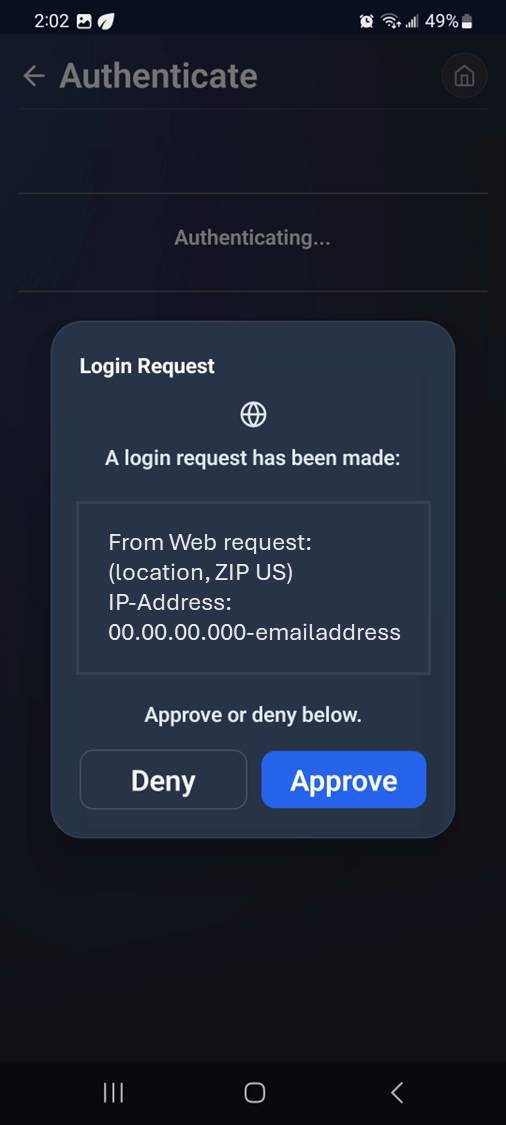 |
Registration is Complete!
You can now access your account in the SDRM Registry.
Remember, once the NASTF App has been registered, the Authy App will no longer work with the account.
App Functions When performing a secure information request from an automaker and are requested to submit your VSPID and Passcode, utilize the apps “Get Passcode” feature to generate one-time use passcodes necessary to complete SDRM transactions (this replaces the current Authy Authentication passcode) In addition, feel free to navigate the app interface and utilize other provided functions such as: VIN decodes confirm vehicle authenticity Automaker Links service links for direct OEM access Notifications system alerts and news | 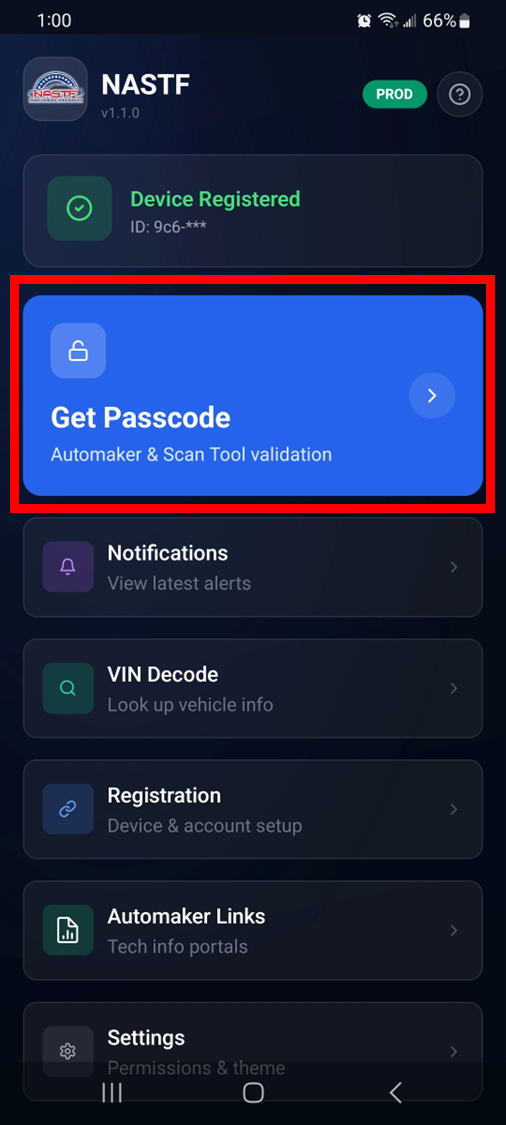 |
Following registration, remember to maintain NASTF policy. Failure to comply may result in suspension or revocation of access.
Compliance Requirements
o MFA use is mandatory for SDRM access.
o Users must not share:
· Login credentials
· Authentication codes
· Registered devices
o The mobile number and device must remain associated with the individual user’s account.
If you have any further questions, please contact the NASTF support team at support.nastf.org.
Was this article helpful?
That’s Great!
Thank you for your feedback
Sorry! We couldn't be helpful
Thank you for your feedback
Feedback sent
We appreciate your effort and will try to fix the article